Bug reporting
Screenshot bug reporting
with useful context.
Show the problem, explain how to reproduce it and make the expected behavior clear. Lumshot helps QA testers and developers prepare annotated screenshots and screen recordings for visual bug reports.
Use Free for screenshots and annotations on Windows and macOS. Recording, OCR, Smart Redaction and Jira issue creation require Pro. Linux is in development.
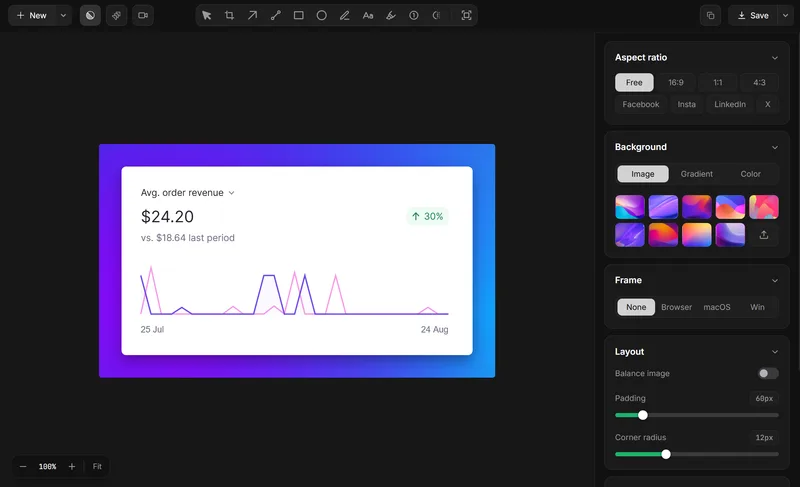
Capture evidence that helps someone reproduce the bug
- Reproduce the issue and note the starting conditions.
- Capture the affected region or window.
- Annotate the relevant detail without covering the evidence.
- Add the reproduction steps, environment and expected behavior.
- Review private information, then share the report with your team.
A screenshot gives everyone the same visible reference. The surrounding report supplies the context the image cannot contain.
An example visual bug report
Checkout total stays unchanged after a discount
- Steps
- Open the cart, add an item, enter the discount code and apply it.
- Expected
- The total updates to reflect the discount.
- Actual
- The original total remains visible.
- Evidence
- An arrow points to the total; a note identifies the applied code. Use test data rather than customer information.
Add the app version, operating system, browser and relevant viewport details yourself. This is an illustrative report structure, not a claim about an actual product defect.
Annotate a bug screenshot without obscuring it
Use the screenshot annotation tool to point an arrow at a broken control, highlight a label or number a short sequence. Put a brief explanation beside the affected area and leave the original evidence readable.
If the error message cannot be selected, copy text from the screenshot with OCR. Check the result before adding it to the report.
Screen recording for bug reports that depend on timing
Use a recording for flicker, a disappearing state or several actions that trigger the issue. The screen recorder with annotation and editing lets you trim the explanation and add text, arrows or blur after recording.
Keep the clip focused on reproduction. Review the whole exported recording for private information. Direct video submission to Jira is not confirmed; share the file through the attachment process your team uses.
Create a Jira issue with screenshot evidence
When your team uses Jira, Lumshot Pro’s Jira screenshot integration connects capture, annotation, review, issue creation and assignment. Check the screenshot and issue details before creating the ticket.
Lumshot’s public guide does not confirm automatic console logs, browser diagnostics, network requests or session replay. For a broader customer-feedback widget, evaluate those requirements separately.
Questions for QA teams
Does a screenshot replace reproduction steps?
No. A still image shows a symptom, but a developer also needs the actions and starting conditions that produce it. Include expected and actual behavior in the report.
What should I remove before sharing?
Review account details, messages, tokens, customer data and unrelated windows. Use local Smart Redaction where appropriate and check the full result yourself.
Give the next report a clear visual reference.
Capture and annotate for free. Compare Pro for recording and Jira workflows.