Choose Shottr if…
You want a small Mac screenshot utility with precise measurement, color and image-overlay tools.
Lumshot vs Shottr
Shottr is a lightweight native Mac screenshot tool for people who care about pixels. Lumshot is a Shottr alternative when you also need Windows capture, screen recordings, AI conversations or screenshot-based Jira reports.
Information checked October 8, 2026
Choose Shottr if…
You want a small Mac screenshot utility with precise measurement, color and image-overlay tools.
Choose Lumshot if…
Your work moves between screenshots and recordings, then into AI assistants or Jira on Windows or Mac.
At a glance
Capabilities overlap. The details and the next step make the difference.
Checked October 8, 2026. Numbers link to official sources. On smaller screens, scroll the table sideways.
| Capability | Shottr | Lumshot |
|---|---|---|
| Screenshot capture | Mac screenshot capture [1] | Region, window and full display |
| Scrolling capture | Scrolling screenshots [1] | Scrolling screenshots |
| Annotation | Text, drawings, highlights and spotlights [1] | Arrows, shapes, text, highlights, blur and steps |
| Text recognition | Text recognition and QR reading [1] | On-device text extraction |
| Redaction | Pixelation and object/text removal tools [1] | Local detection; review and apply protection |
| Sharing | Clipboard, saved images and S3 uploads [1] | Clipboard, drag to supported apps, PNG/JPG exports |
| Platforms | Native macOS app, optimized for Apple Silicon [1] | Windows 10 (64-bit)+ and macOS 12+; Linux in development |
| License model | Free use with upgrade prompts; one-time licenses, required for commercial use [2] | Free with watermark; Pro $29 USD early bird, one-time with lifetime updates |
Lumshot’s advanced workflows require Pro. Free capture and annotation include a watermark. This table describes published capabilities, rather than feature parity or a hands-on performance benchmark.
Where Shottr stands out
Shottr is a native app optimized for Apple Silicon. Its screenshot-first design is a good match for focused capture tasks. [1]
A screen ruler, color picker, image overlays, OCR and QR recognition serve design review and front-end work. [1]
Scrolling capture, annotation, backgrounds, pixelation, object removal and S3 uploads extend its screenshot workflow. [1]
Where Lumshot differs
If your task is measuring a layout or inspecting a color, Shottr’s specialist tools may be the reason to keep it. If the problem appears only after a click or a sequence of actions, test Lumshot’s Pro recorder and editing workflow. A recording gives reviewers timing and movement that a still capture cannot show.
Lumshot also brings screenshots into supported AI conversations and Jira reports. Those are broader handoffs, not evidence that it replaces Shottr’s ruler, overlays or color tools. The best comparison starts with a task that your current screenshot workflow leaves unfinished.
Explore screenshot annotation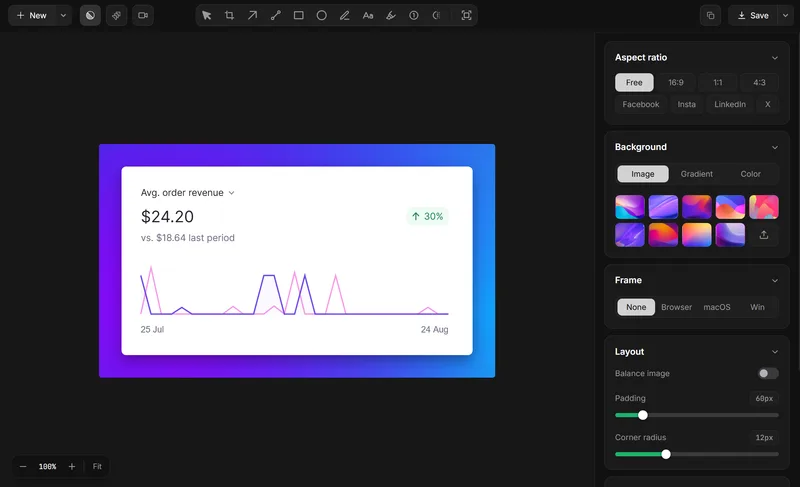
Compare the handoff
Choose a static layout problem and an interaction bug for your test. They reveal different strengths without turning a feature list into a ranking.
Platforms
Shottr’s downloadable app is for macOS. Lumshot offers Windows and Mac versions, making it a candidate when you want capture and annotation on a Windows desktop too. The Windows and Mac apps should be evaluated on their own devices; do not assume identical shortcuts. Lumshot for Linux is in development.
Capture → Explain → Act
Shottr’s reviewed feature set concentrates on screenshots and image utilities. Lumshot explicitly documents recording and video editing, plus AI Auto Paste and Jira. This describes Lumshot’s broader documented workflow; it is not a claim that Shottr screenshots cannot be shared with an assistant or attached to an issue.
Open a supported conversation, capture the relevant screen, and let AI Auto Paste add the image. You add the prompt. Supported apps include ChatGPT, Claude, Cursor, Gemini and GitHub Copilot.
Explore AI Auto PasteSee the screenshot to Cursor workflow or the supported AI setup guide.
Capture, annotate and review the problem, then create the Jira issue with the screenshot included and assign it to your team. Project-specific fields and permissions should be checked in your own Jira setup.
Explore Jira integrationRead how to create a Jira issue from a screenshot and prepare a visual bug report.
OCR and Smart Redaction process locally. Sending content to an AI app, Jira or another destination shares it with that service. Read the privacy policy
Choose by the work you do
Lumshot Free includes unlimited screenshots, annotation, clipboard, drag and PNG/JPG export with a watermark. Pro adds recording and editing, OCR, scrolling, Smart Redaction, AI Auto Paste and Jira, for $29 USD at the current early bird lifetime price. Both plans include lifetime updates.
Compare Lumshot plansTry a real task first
You can try Lumshot alongside your current app. There is no need to uninstall it or move an archive just to compare a new capture.
Start with the installation guide and shortcut guide. Lumshot’s published documentation does not describe a competitor-account or project-import system; these steps do not promise one.
Common questions
Yes. Lumshot is available for Windows 10 (64-bit) or later and macOS 12 or later. Shottr’s official downloadable app is Mac-focused.
Yes. Its official feature page documents OCR, QR reading and scrolling screenshots, alongside annotation and image utilities. Those tools overlap with parts of Lumshot’s workflow.
Lumshot Pro documents screen recording, system audio, microphone, camera support and video editing. Shottr’s reviewed public feature set is screenshot-focused; test Lumshot when recording is part of your requirement.
Do not assume so. This comparison does not establish parity for those specialist utilities. Keep Shottr if they are essential, and evaluate Lumshot for recording or AI/Jira handoffs.
Yes. Install it alongside your current app and test a new capture. Keep your originals and existing links; there is no documented Shottr-library migration. Advanced Lumshot workflows require Pro.
Keep comparing
Try Lumshot on an interaction bug or AI question. Keep Shottr’s pixel tools if they still fit the job.
Free capture and annotation. Advanced workflows require Pro.