Choose Xnapper if…
You mainly create polished screenshots for social posts, presentations and visual communication.
Lumshot vs Xnapper
Xnapper specializes in making screenshots presentation-ready, with automatic balance, backgrounds and redaction. Lumshot is an Xnapper alternative when the priority shifts from a finished image to screen recording, an AI conversation or a Jira report on Windows or Mac.
Information checked October 8, 2026
Choose Xnapper if…
You mainly create polished screenshots for social posts, presentations and visual communication.
Choose Lumshot if…
You need to capture and explain technical work, including recordings, then continue in AI or Jira.
At a glance
Capabilities overlap. The details and the next step make the difference.
Checked October 8, 2026. Numbers link to official sources. On smaller screens, scroll the table sideways.
| Capability | Xnapper | Lumshot |
|---|---|---|
| Screenshot capture | Region and window screenshots in the Mac app [2] | Region, window and full display |
| Annotation | Arrows, shapes, text and blur [1] | Arrows, shapes, text, highlights, blur and steps |
| Text recognition | On-device recognition using macOS Vision [1] | On-device text extraction |
| Redaction | Automatic sensitive-information redaction [1] | Local detection; review and apply protection |
| Sharing | Image export/compression; separate web editor has cloud sharing [1] [2] | Clipboard, drag to supported apps, PNG/JPG exports |
| Platforms | macOS desktop app; separate browser editor and iOS app [2] [3] | Windows 10 (64-bit)+ and macOS 12+; Linux in development |
| License model | Free with watermark; desktop one-time plans with one year of updates, plus a team subscription [1] [3] | Free with watermark; Pro $29 USD early bird, one-time with lifetime updates |
Lumshot’s advanced workflows require Pro. Free capture and annotation include a watermark. This table describes published capabilities, rather than feature parity or a hands-on performance benchmark.
Where Xnapper stands out
Automatic balancing, background treatment and social-media ratios are central to Xnapper’s screenshot workflow. [1]
The Mac app includes annotation, on-device OCR and automatic sensitive-information redaction. It is more than a background generator. [1]
Xnapper also has a separate web editor with mockups and cloud sharing. Do not confuse that browser product with a Windows desktop capture app. [2]
Where Lumshot differs
A product image for a social post and a screenshot of a failed checkout have different goals. In the first case, balance, background and aspect ratio may be the deciding tools. In the second, the important result is enough context for someone to understand and act on the problem. Lumshot’s annotation, Pro recording and AI/Jira paths target that broader task.
Lumshot also has background controls, but this comparison does not rank it above Xnapper for beautification. Choose Xnapper when its presentation defaults are what you want. Evaluate Lumshot when timing, narration, an AI question or issue tracking matters more than the image’s final framing.
Explore screenshot annotation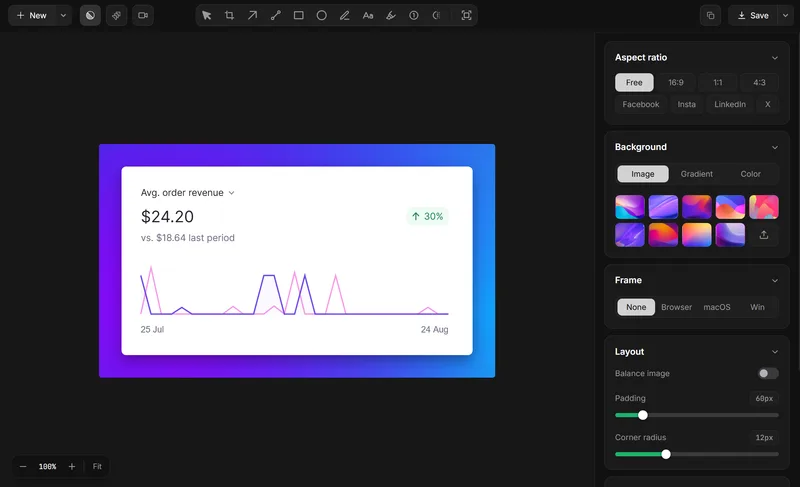
Compare the handoff
Test one image you intend to publish and one problem you intend to solve. The finishing step is often the useful distinction.
Platforms
Xnapper’s native desktop capture app is for macOS. Its browser editor can work with images on other systems, which is different from a native Windows screen-capture workflow. Lumshot has Windows and Mac apps. Its Linux version remains in development and is not a current download option.
Capture → Explain → Act
A polished image can still be sent to any app that accepts it. Lumshot’s specific proposition is the documented automatic handoff into supported AI conversations and its Jira capture-and-review flow. That is a reason to try the workflow, not a claim that Xnapper images are unsuitable for technical work.
Open a supported conversation, capture the relevant screen, and let AI Auto Paste add the image. You add the prompt. Supported apps include ChatGPT, Claude, Cursor, Gemini and GitHub Copilot.
Explore AI Auto PasteSee the screenshot to Cursor workflow or the supported AI setup guide.
Capture, annotate and review the problem, then create the Jira issue with the screenshot included and assign it to your team. Project-specific fields and permissions should be checked in your own Jira setup.
Explore Jira integrationRead how to create a Jira issue from a screenshot and prepare a visual bug report.
OCR and Smart Redaction process locally. Sending content to an AI app, Jira or another destination shares it with that service. Read the privacy policy
Choose by the work you do
Lumshot Free includes unlimited screenshots, annotation, clipboard, drag and PNG/JPG export with a watermark. Pro adds recording and editing, OCR, scrolling, Smart Redaction, AI Auto Paste and Jira, for $29 USD at the current early bird lifetime price. Both plans include lifetime updates.
Compare Lumshot plansTry a real task first
You can try Lumshot alongside your current app. There is no need to uninstall it or move an archive just to compare a new capture.
Start with the installation guide and shortcut guide. Lumshot’s published documentation does not describe a competitor-account or project-import system; these steps do not promise one.
Common questions
Yes, when you need a Windows desktop app for capture, annotation and Pro recording or workflow integrations. Xnapper’s native desktop app is Mac-focused; its separate browser editor is an image-editing option on other systems.
Yes. The Mac app documents on-device text recognition and automatic sensitive-information redaction, plus annotation tools. Those capabilities are not unique to Lumshot.
Lumshot Pro explicitly documents screen recording with system audio, microphone and camera support, plus editing. Xnapper’s reviewed product pages focus on screenshots and presentation; compare the recording task in Lumshot rather than assuming feature parity.
This comparison does not establish that. Xnapper’s automatic balance and presentation workflow may be the stronger fit for your images. Lumshot is worth testing for capture, explanation and AI/Jira handoffs.
Yes. Test new captures without moving your existing images or links. There is no documented Xnapper-specific migration flow in Lumshot; each product’s license remains separate.
Keep comparing
Try Lumshot on a recording, AI question or Jira report. Keep your preferred image styling workflow for published visuals.
Free capture and annotation. Advanced workflows require Pro.